Guide
How to Design a Direct Mail Postcard with AI
AI tools like Claude and ChatGPT can write and lay out a mailer in minutes. The hard part is getting a card that prints correctly and does not say things you cannot back up. This guide shows you how, and gives you a free skill that does the print checks for you.
What AI does well, and what it gets wrong
AI is a fast first draft. It is good at:
- Writing five headline options in seconds, so you can pick the best one.
- Turning your offer into short, clear lines a homeowner reads in three seconds.
- Building a color palette from your logo or brand colors.
- Making the pictures: a hero scene, a background, or an illustration of your service.
- Laying out the front and back so the offer and phone number stand out.
Left on its own, AI also makes mistakes that cost you money at the printer:
- Wrong size. Image tools make pictures at screen size. A mailer needs a 6 x 9 inch card with extra edge for trimming, at print resolution.
- A wrong digit. Image tools are now good at text, but one wrong digit in a phone number goes out on every card. Read every word and digit before you upload.
- Art where the address goes. The post office needs a clear white area on the back. A card with art there cannot mail.
- Made-up claims. AI likes to add "Licensed & Insured", "5-Star Rated", or "Since 1998". If it is not true for your business, it does not belong on the card.
The fix is simple: let the AI write the words, make the pictures, and plan the layout, and let a template or a checking tool handle the print rules.
Make the pictures with AI
AI image tools now make pictures good enough for a mailer: a warm living room on a cold night, a clean kitchen, a bright lawn, in your brand colors. ChatGPT makes images right in the chat. In Claude, add an image tool such as Higgsfield as a connector, and Claude can make and edit pictures for you.
- Ask for the right shape. Ask for a landscape 3:2 image. Say what the scene is, name your brand colors, and ask for open space (sky, a wall, a plain side) where the headline goes.
- Upscale it. Most image tools make pictures smaller than print size. Use the tool's upscale option until the picture is at least 2775 x 1875 pixels.
- Keep the words editable. You can ask the image tool to put the headline and phone number in the picture, and it usually gets them right. But to fix a typo you must make the picture again. When the picture has no words and the skill or template adds them, a fix takes seconds.
- Keep it honest. Do not show AI people as your crew or an AI kitchen as your finished job. Use real photos for those. Homeowners trust what they can check.
- Check the rights. Make sure your plan on the image tool allows commercial use.
Then give the picture to the PostCanary skill (Option 1) or put it on our template. The back of the card still needs the clear address area, so build the back with the skill or the template, not the image tool.
The print rules your card must follow
Every PostCanary mailer is a 6 x 9 inch postcard. Give your AI these numbers:
| Finished size | 9 x 6 inches, landscape |
|---|---|
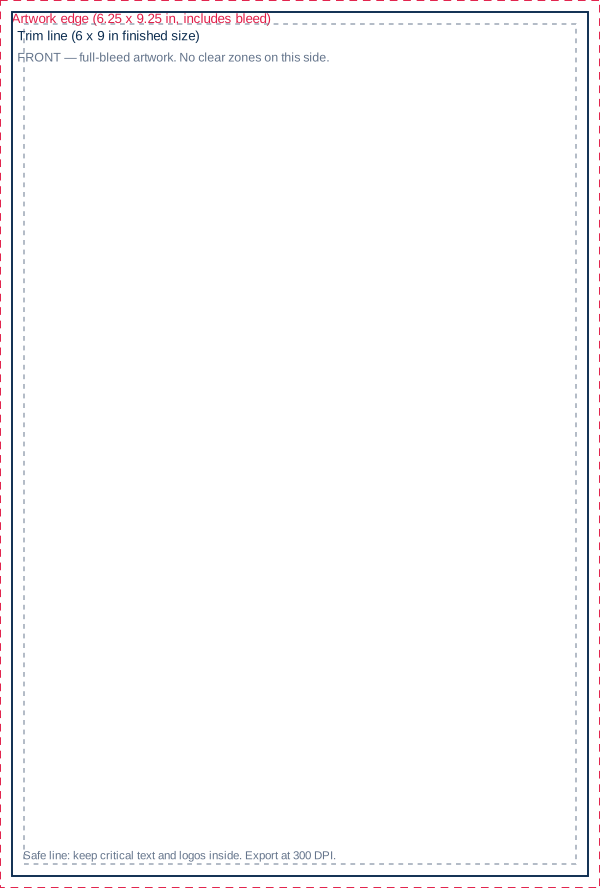
| File size with bleed | 9.25 x 6.25 inches (0.125 inch extra on every edge) |
| Resolution | At least 2775 x 1875 pixels (300 DPI) |
| Safe area | Keep all words and logos 0.25 inch inside the trim edge |
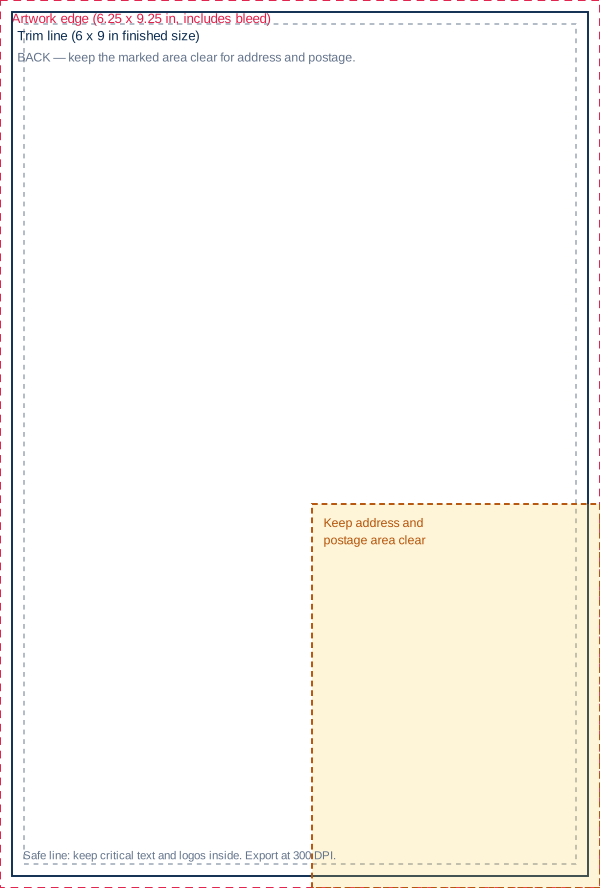
| Address area | Lower-right 3.75 x 2.5 inches of the back stays white |
| File types | PDF, PNG, or JPEG, up to 20 MB |
| PDF files | One page per side, CMYK color, all fonts embedded |
Prefer to work in a design tool? Start from our free template: 6 x 9 template (PDF), front (SVG), and back (SVG).
Option 1: Install the free PostCanary postcard skill
A skill is a set of instructions and small programs that teach an AI one job. Our postcard skill teaches Claude to design a 6 x 9 mailer, front and back, and to check it against the same print rules PostCanary uses when you upload. You get two files ready to upload.
PostCanary postcard design skill
Install it in Claude (claude.ai or the desktop app)
- Download the zip file. Do not unzip it.
- In Claude, open Settings > Capabilities and turn on code execution.
- Go to Customize > Skills, click +, then Create skill, then Upload a skill.
- Choose the zip file. In the Claude desktop app, you can also drag the zip file from your Downloads folder and drop it on the upload window.
- The skill shows in your list as postcard-design. Make sure it is on.
On Team and Enterprise plans, an owner may need to allow skills first. Claude moves its menus from time to time; if a step looks different, search Claude's help center for "upload a skill".
ChatGPT
The skill uses the open Agent Skills format. ChatGPT workspaces that have Skills turned on can upload the same file. If you do not see Skills, ask your workspace admin, or use Option 2 below.
Use it
Start a new chat and ask for your card. For example:
Design a PostCanary postcard for Hilltop Heating & Air. Phone (919) 555-0142, website example.com. Offer: $79 furnace tune-up, book by November 30. We serve Cary and Apex. Our colors are navy and orange. My logo is attached.
Then the skill:
- Asks for anything missing. It needs four things: business name, phone, website, and one offer.
- Plans the layout and writes the copy from your words only.
- Checks the plan for print problems, made-up claims, and phone or website typos.
- Makes front.png and back.png at full print size, plus a preview.png with guide lines.
- Runs the same size and address-area checks that PostCanary runs on upload.
Not happy with it? Tell Claude what to change ("make the headline about saving money", "use the picture I made in ChatGPT") and it redoes the card and the checks.
Option 2: Copy our prompt into any AI chat
No install needed. Paste this into ChatGPT, Claude, Gemini, or Copilot. Fill in the brackets first. The AI writes your words; you place them on our free 6 x 9 template in Canva, Adobe Express, or any design tool, then export at 2775 x 1875 pixels or larger.
Help me write a 6 x 9 inch direct mail postcard for my business. Ask me for anything that is missing before you write.

Business name: [name]
Phone: [phone]
Website: [website]
Towns I serve: [towns]
My one offer: [for example: $79 AC tune-up, book by May 31]
Facts I can prove: [for example: licensed in NC, 4.9 stars from 312 Google reviews]
Brand colors: [colors]

Write:
1. Three headline options for the front. Eight words or fewer. Each names a benefit to the homeowner.
2. One offer line for the front, plus my phone number and website.
3. The back: the offer again, three short reasons to call, one call to action, and my phone number as the biggest text.

Rules:
- Use only the facts I gave you. Do not add ratings, years in business, guarantees, "licensed and insured", or prices that I did not give you.
- Do not say when the card will arrive.
- One offer only.
- Copy my phone number and website exactly.
- Keep the lower-right 3.75 x 2.5 inches of the back empty. The postal address prints there.
Write copy that makes the phone ring
Whatever tool you use, check the AI's draft against these rules:
- One offer per card. Two offers split attention and lower response.
- A short headline. Eight words or fewer, about what the homeowner gets. "Book Your $79 Furnace Tune-Up" beats "Hilltop Heating: Your Comfort Partner".
- Use a real number. A price, a dollar amount off, or a deadline. Only use numbers that are true.
- Name the town. "Cary homeowners:" tells people the card is for them.
- Make the phone number the biggest text on the back. Many people call instead of scanning a QR code.
- Give a deadline. "Book by November 30" gets action now. Do not promise when the card will arrive.
- Use real photos for proof. Your crew, trucks, and finished jobs build trust. Use AI pictures for scenes and backgrounds, not to show people or work that is not yours.
Check it, then upload it to PostCanary
Before you upload, read every word on both sides yourself:
- Phone number and website are correct, digit by digit.
- The offer, price, and deadline are what you will honor.
- Every claim on the card is true for your business.
- Nothing important is near the edge of the card.
- The lower-right corner of the back is white.
Then start a campaign in PostCanary. At the Your Mailer step, upload your front and back files. PostCanary checks the size, resolution, and address area right away, shows you how the card will print. Our team may also review a design before it goes to the printer. You pay only when you approve the send.
Ready to mail it?
Pick a neighborhood or upload your own list, add your AI-made design, and see what the mail earned. No subscription.
Get started with PostCanary